Import from Figma
How to import Figma designs into Polotno via SVG export
Polotno can import designs from Figma using the SVG Import feature. The process is straightforward: export your Figma frame as SVG, then import it into Polotno.
Step 1: Select a Frame in Figma
In Figma, select the frame you want to export. Make sure everything you need is inside that frame.
Step 2: Export as SVG
In the right panel, find the Export section and select SVG as the format.
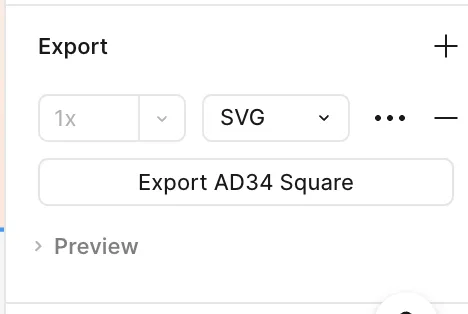
Before exporting, click the ... button to open additional export options.
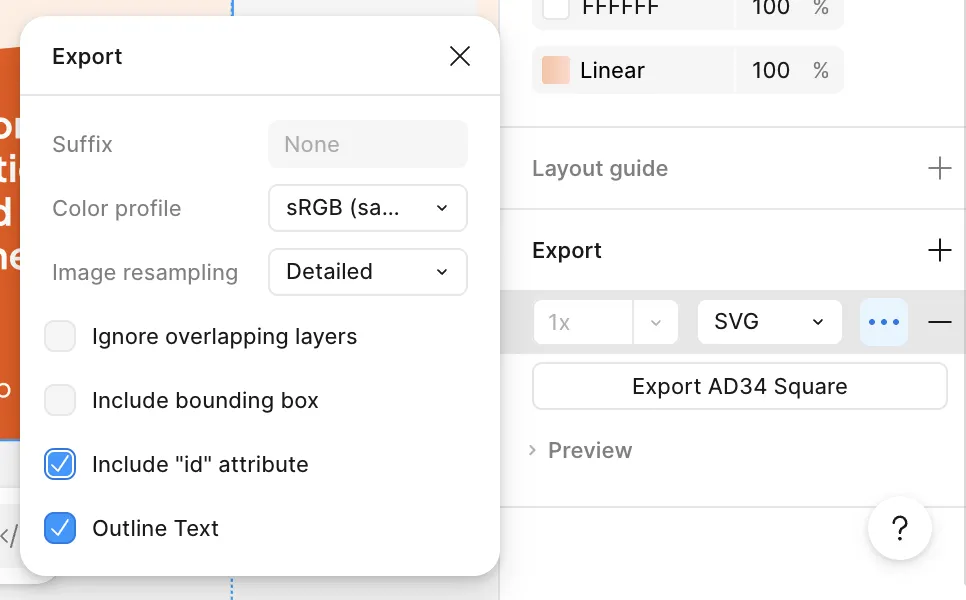
Export Options
"Outline Text" must be OFF if you want editable text in Polotno. When "Outline Text" is enabled, text is converted into vector paths – it will look visually accurate, but you won't be able to edit the text content. You may still drag, resize, and recolor outlined text elements.
- Outline Text: Toggle OFF for editable text. Toggle ON if visual fidelity matters more than editability.
- Include "id" attribute: Toggle ON to preserve layer names from Figma in the imported design.
Step 3: Import SVG into Polotno
Once you have the SVG file, use the @polotno/svg-import package to load it into Polotno:
import { svgToJson } from '@polotno/svg-import';

async function importFigmaSVG(file: File) {
  const svgContent = await file.text();
  const json = await svgToJson({ svg: svgContent });
  store.loadJSON(json);
}
For full details on SVG import options and troubleshooting, see the SVG Import documentation.
Tips
- One frame at a time: Export and import each frame separately for best results.
- Flatten complex effects: Figma effects like advanced blurs or blend modes may not translate perfectly. Simplify where possible.
- Check text after import: Verify that text elements are editable and display correctly in Polotno.