An HTML canvas image editor edits images on the browser's <canvas> element. The canvas paints pixels and keeps no record of what it painted, so selection, text editing, undo and export quality are code you write or a library you add.
HTML canvas image editor demo
The editor above runs on a canvas in this page. This post covers what the canvas does for you, what an editor needs beyond it, and how to choose between raw canvas code, a canvas library and an SDK.
What the canvas gives you
A drawing surface, an image loader and an export call. This is a complete editor for one fixed operation:
const canvas = document.querySelector('canvas');
const ctx = canvas.getContext('2d');

const img = new Image();
img.crossOrigin = 'anonymous';
img.onload = () => {
  ctx.drawImage(img, 0, 0, canvas.width, canvas.height);
  ctx.font = '48px sans-serif';
  ctx.fillStyle = 'white';
  ctx.fillText('Summer sale', 40, 80);
  canvas.toBlob((blob) => upload(blob), 'image/png');
};
img.src = 'https://example.com/photo.jpg';
It draws a photo, stamps a caption and exports a PNG. If your feature is a watermark or a fixed crop, you can stop here.
What an editor needs on top
Problems start when the user wants to move the caption.
- Objects. After
fillTextruns, the caption is pixels. To move it you clear the canvas and draw everything again, so you keep your own list of objects with their positions, sizes and order. - Hit testing. The canvas reports where the pointer is. Working out which object sits under it, in a stack of rotated and overlapping shapes, is your code.
- Resize and rotate handles. You draw the handles, track the drag, and apply the math to one object or to several selected at once.
- Text editing.
fillTextdraws one line. Wrapping, a cursor, text selection and mixed styles inside a paragraph are yours to build. - Sharp output. On a high-density screen a canvas looks blurry until you scale it by
devicePixelRatio. Print needs a far larger render than the screen does. - Images from other domains. Draw an image without the right CORS headers and the browser blocks
toBlobandtoDataURL. See how to resolve CORS issues. - Undo. The canvas has no history. You store snapshots or commands and replay them.
Libraries on top of the canvas
Konva and Fabric.js take the first three items off that list. They give you objects, pointer events on those objects, transform handles and a way to save the scene as JSON.
The editor around the canvas stays with you: toolbars, side panels, an asset library, templates, font loading and the export pipeline. Polotno SDK vs Konva and Polotno SDK vs Fabric.js list what each library covers.
An SDK on top of the library
Polotno SDK is that editor, built on Konva. The same team maintains both. You get the canvas editor with its toolbar and side panels, text editing, image editing and export to JPEG, PNG, SVG and PDF, with video as well. You can restyle the interface and replace its panels with your own; see customization.
Which route to take
- Raw canvas when the editor does one or two fixed operations, such as a crop or a watermark. A few hundred lines of code cover it.
- Konva or Fabric.js when the editor is your product, its interaction model is unusual, and you have months of front-end time.
- An SDK when the editor supports your product and you need it this quarter. You give up some freedom in how the editor is structured.
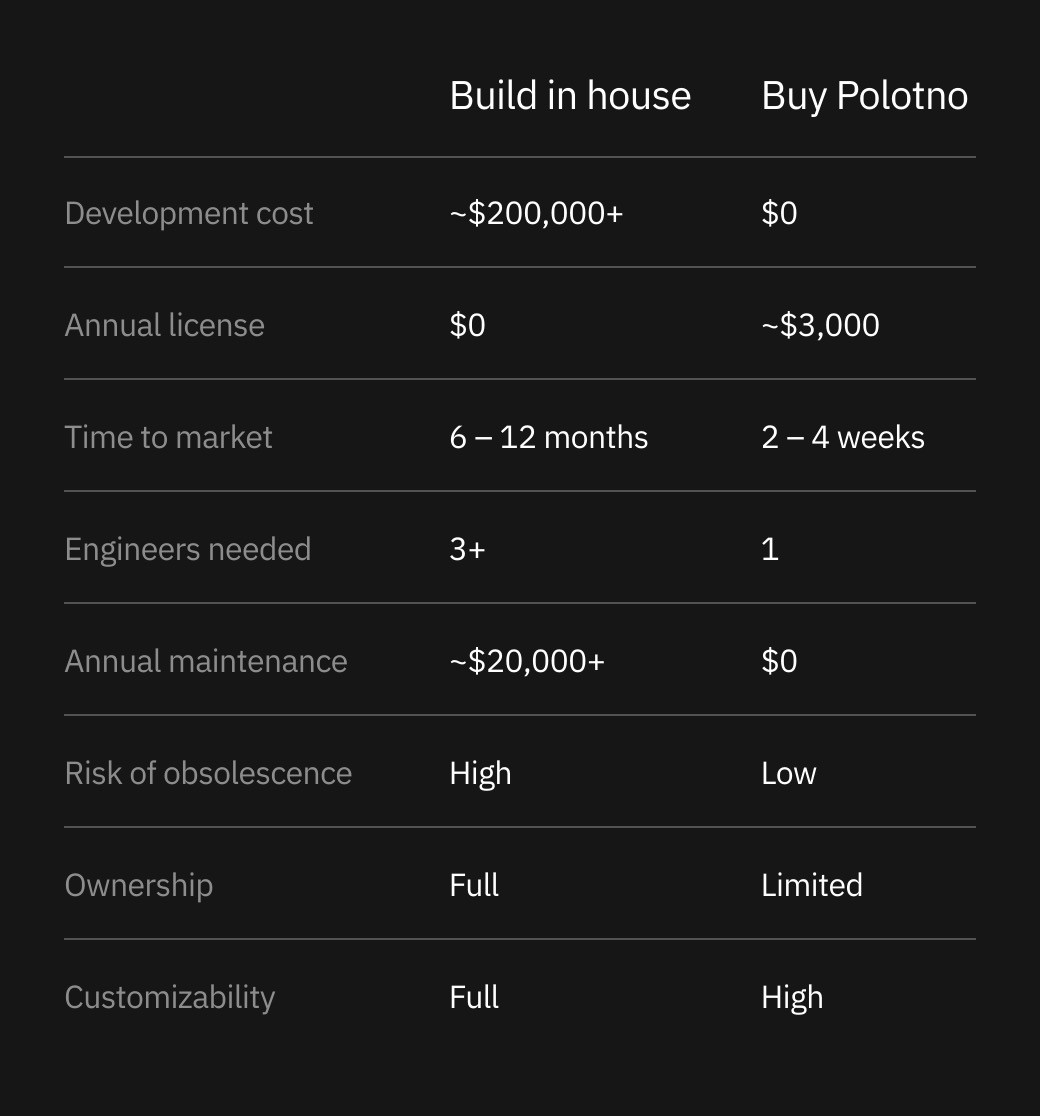
Polotno SDK is a fixed license fee by quote; see SDK pricing. Build vs buy covers the cost of each route.